Setup & Authentication
To use the Lichess integration features in chess-tui, you need to authenticate with a Lichess API token. This guide will walk you through the process step by step.
Generating a Token
First, you need to generate a personal access token from your Lichess account.
Step 1: Navigate to Lichess Token Page
- Go to your Lichess Account Security page.
- You should see a page with options to manage your API tokens.
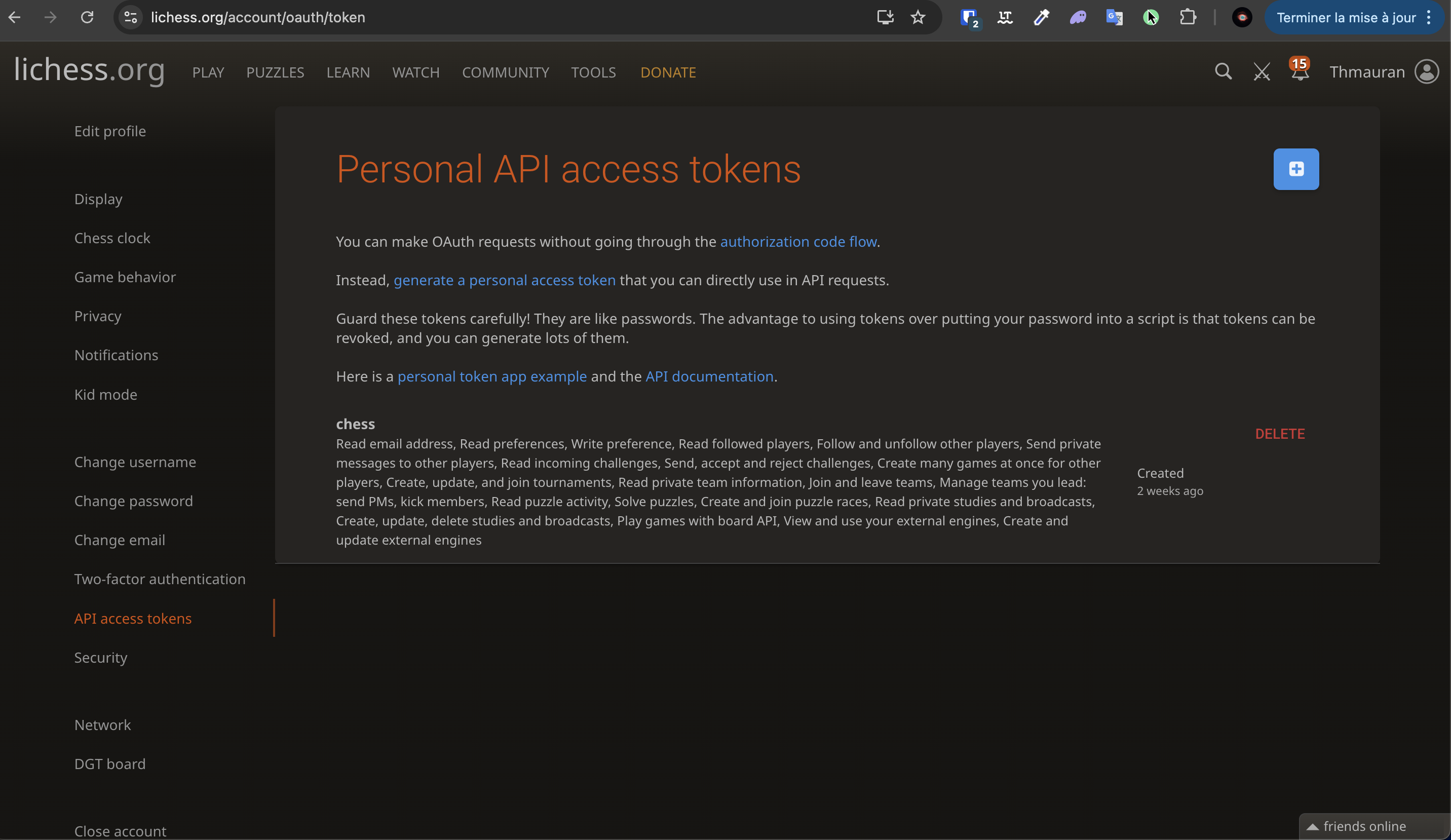
Step 2: Generate a New Token
- Click on "Generate a personal access token" button.
- A form will appear asking for token details.
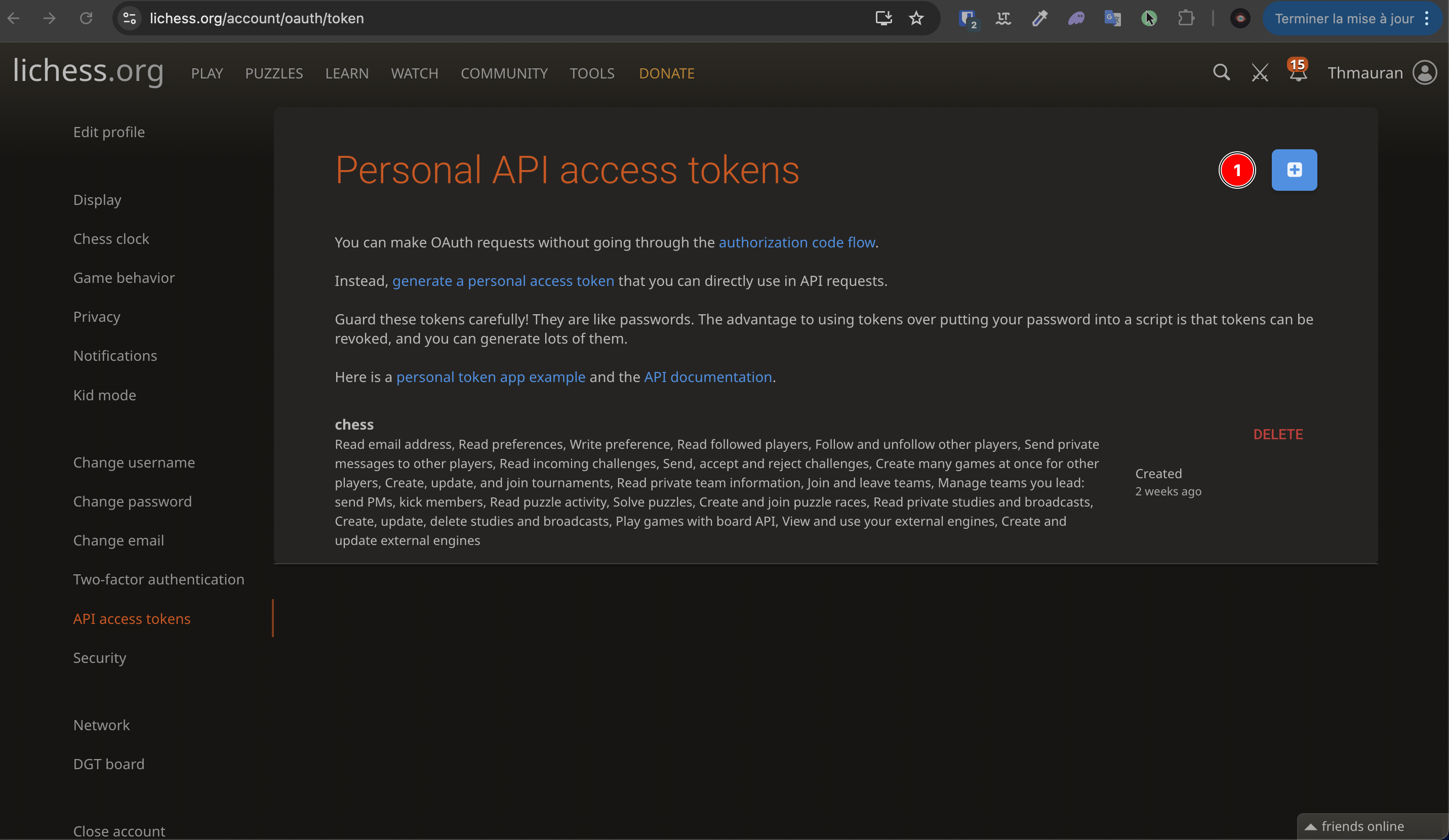
Step 3: Configure Token Settings
- Give your token a description (e.g., "chess-tui" or "Chess TUI Application").
- Important: Make sure to check all the scopes (permissions) to ensure full functionality. At a minimum, you need:
Read preferencesCreate, read, update, delete games(orboard:play)Read puzzle activity(orpuzzle:read)
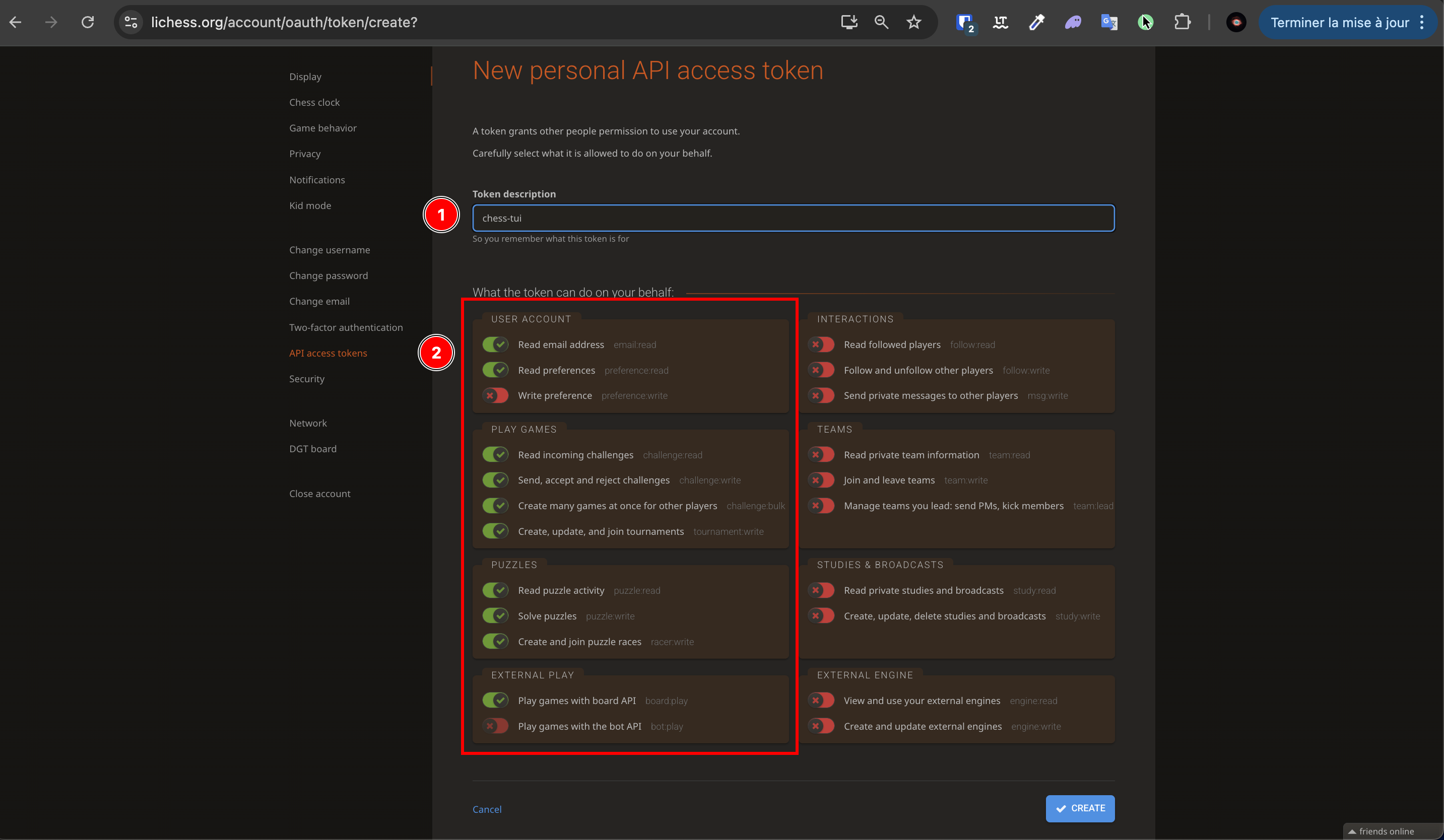
Step 4: Copy Your Token
- Click "Submit" to create the token.
- Important: Copy your token immediately - you won't be able to see it again!
- The token will look like a long string of characters.

Keep your token secure! Never share it publicly. If you lose it, you'll need to generate a new one.
Configuring the Token in chess-tui
There are three ways to provide your token to chess-tui. We recommend the Interactive Entry method for the best user experience.
Method 1: Interactive Entry (Recommended) ⭐
This is the easiest method and requires no technical knowledge. When you try to access Lichess features without a token, chess-tui will automatically guide you through the process.
Step 1: Access Lichess Features
- Launch
chess-tui. - Navigate to the main menu.
- Select "Lichess" from the menu options.
Step 2: Token Entry Popup Appears
If you don't have a token configured, a popup will automatically appear asking you to enter your token.
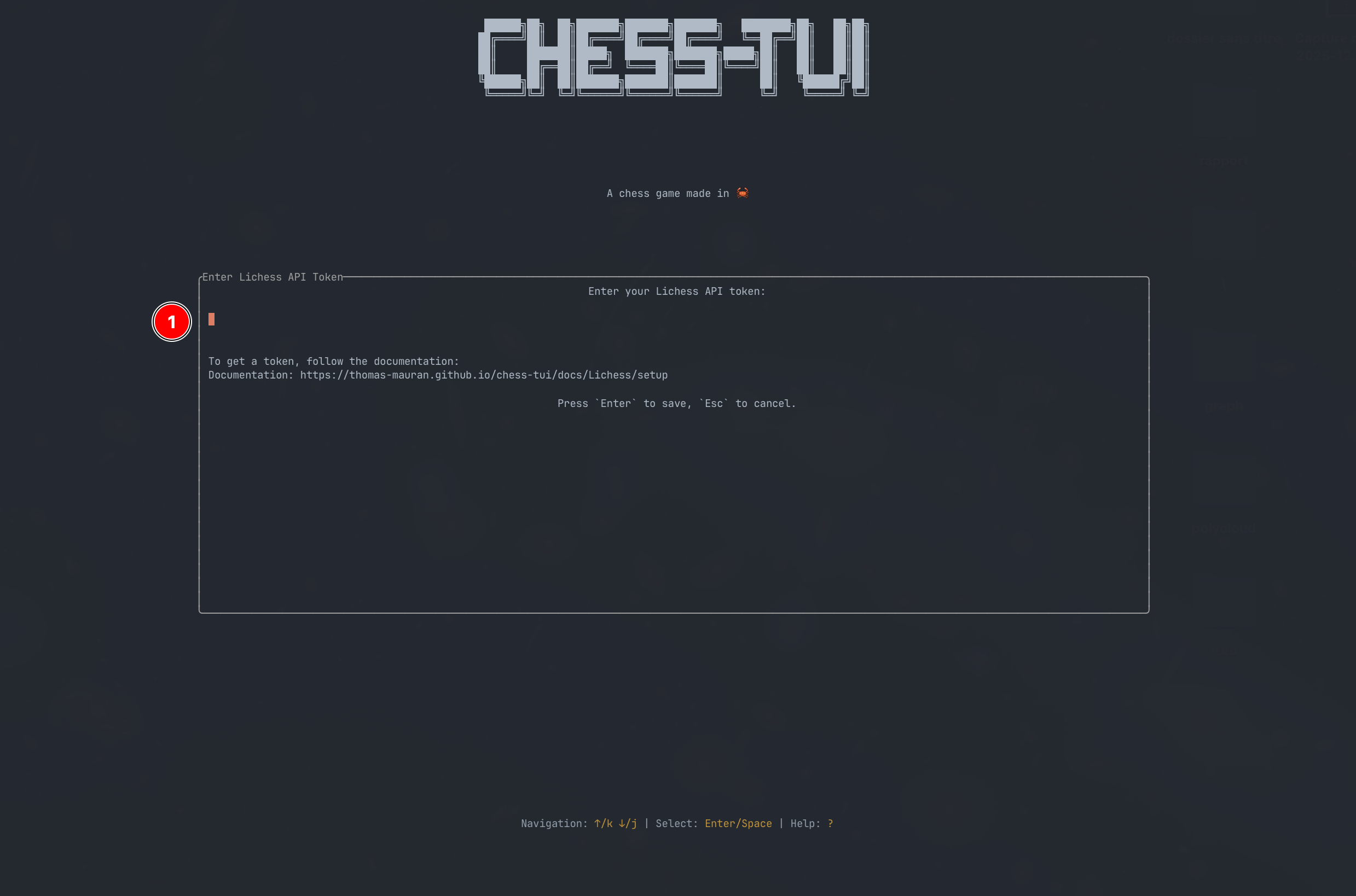
Step 3: Enter Your Token
- Paste your Lichess API token into the input field.
- The token will be masked for security (only the last 4 characters are visible).
- Press
Enterto save and validate the token.
Step 4: Token Validation
The application will automatically:
- Validate your token by connecting to Lichess
- Save it to your configuration file
- Display a success message with your username
If the token is invalid, you'll see an error message with helpful instructions.
Step 5: Start Using Lichess Features
Once your token is saved, you'll be automatically taken to the Lichess menu where you can:
- Seek games
- Solve puzzles
- View ongoing games
- Join games by code
Method 2: Command Line Argument
If you prefer to set the token when launching the application, you can use the command line flag.
chess-tui -l YOUR_LICHESS_TOKEN_HERE
Or with the long form:
chess-tui --lichess-token YOUR_LICHESS_TOKEN_HERE
The token will be automatically saved to your configuration file for future use, so you only need to do this once.
Method 3: Configuration File (Advanced)
For advanced users who prefer manual configuration, you can edit the configuration file directly.
Locate Your Config File
The configuration file is located at CONFIG_HOME/chess-tui/config.toml, where CONFIG_HOME is:
- Linux:
$XDG_CONFIG_HOMEor$HOME/.config - macOS:
$HOME/Library/Application Support - Windows:
%APPDATA%(Roaming AppData folder)
Edit the Configuration
Open the config.toml file and add your token:
lichess_token = "YOUR_LICHESS_TOKEN_HERE"
If the file doesn't exist, create it with this content. Make sure to replace YOUR_LICHESS_TOKEN_HERE with your actual token.
Verifying Your Setup
Once you've configured your token, you can verify it's working:
- Launch
chess-tui. - Navigate to the "Lichess" menu option.
- If your token is valid, you'll see the Lichess menu with your username displayed.
Troubleshooting
Token Not Working
If you're having issues with your token:
- Check token validity: Make sure you copied the entire token correctly.
- Verify scopes: Ensure all required scopes are enabled in your Lichess token settings.
- Generate a new token: If the token still doesn't work, try generating a new one.
- Check error messages: The application will display specific error messages to help diagnose the issue.
Common Error Messages
- "Invalid token": Your token may be incorrect or expired. Generate a new one.
- "Token missing permissions": Make sure you enabled all required scopes when generating the token.
- "Failed to fetch profile": Check your internet connection and try again.
Need Help?
If you continue to experience issues:
- Check the Lichess API documentation
- Verify your token at the Lichess token page
- Try generating a new token with all scopes enabled
Next Steps
Now that you've set up your Lichess token, you can:
- Learn about Lichess features
- Start playing games online
- Solve puzzles
- Join games with friends
Enjoy playing chess with chess-tui!